
How to Create a Post for All Channels or Per Channel
5 min read7 views
On this page
- Before you start
- Part 1: Create a post for all channels
- Step 1: Open Create Post
- Step 2: Choose where to publish
- Step 3: Write the title and caption
- Step 4: Use the editor tools
- Step 5: Add an image or video
- Step 6: Check the preview and publish
- Part 2: Create a post per channel
- Step 1: Switch to Per channel
- Step 2: Write each version
- Step 3: Publish
- Fix common errors
- "Instagram, Pinterest needs an image or video"
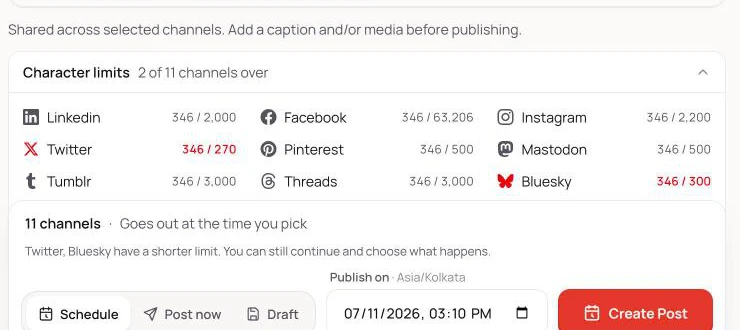
- "Twitter, Bluesky have a shorter limit"
- "Pick a time at least 5 minutes from now"
- "Sorry your post limit was reached" or "Post limit reached for ..."
- "One or more selected channels are not available"
- "Can't reach the server. Please try again."
- "The call to action URL must start with http:// or https://"
- Tips
Posttely gives you two ways to write a post. All channels sends one caption and the same media to every channel you pick. Per channel lets you write a separate version for each channel, so the text fits each network. This guide walks through both, step by step, and shows how to fix the messages you may see on the way.
Before you start
- Connect at least one channel under Connected Accounts.
- Have your text ready, and an image or video if you want to post one. Instagram and Pinterest cannot publish without one.
Part 1: Create a post for all channels
Step 1: Open Create Post
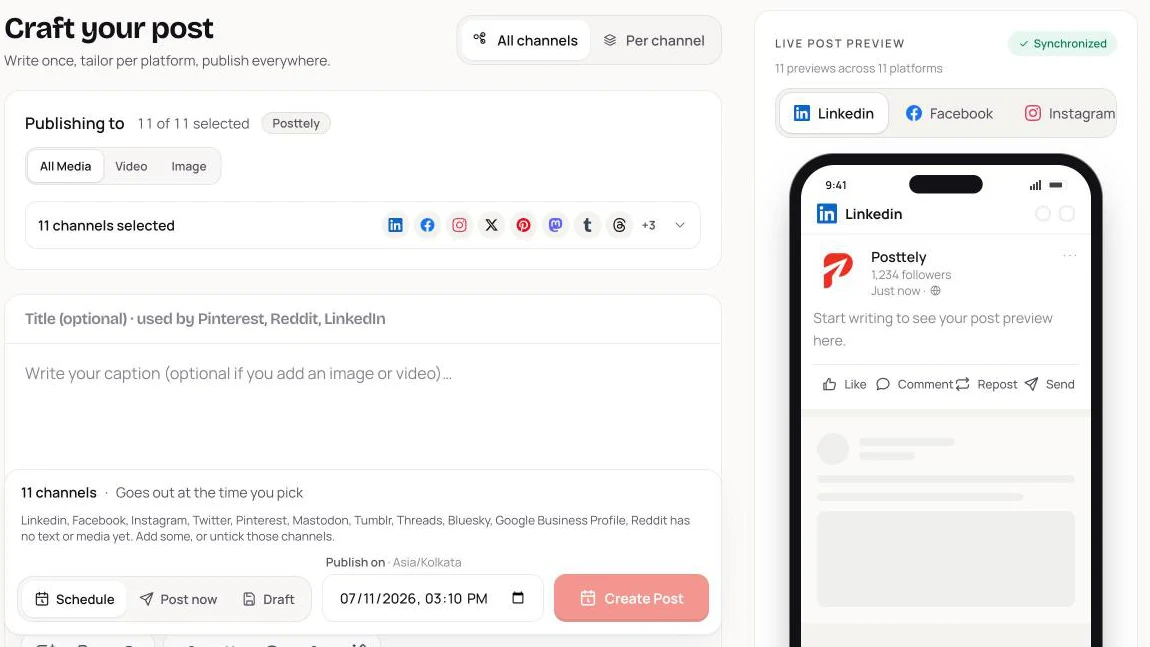
Click Create Post in the left menu, or New post on the Overview page. The page opens in All channels mode, with every channel in the workspace ticked and a live preview on the right.
Step 2: Choose where to publish
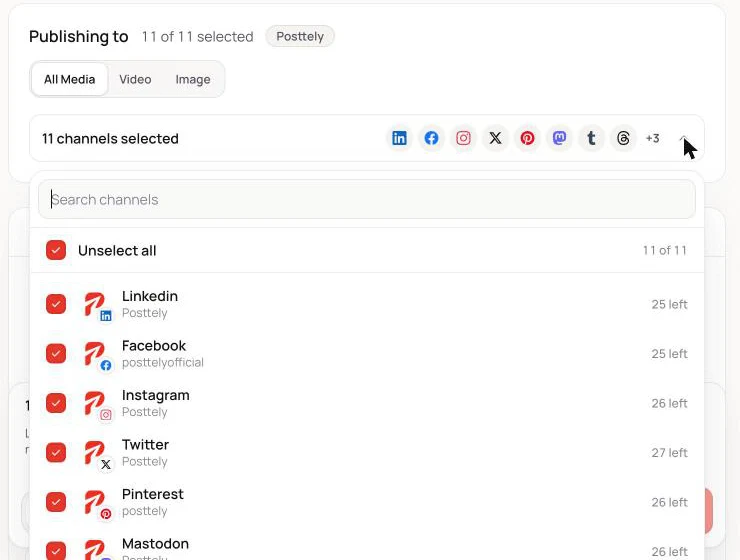
Under Publishing to, open the channel list. Tick or untick channels, search by name, or use Select all and Unselect all at the top of the list. Each row shows how many posts that channel has left this month. The Video tab hides channels that cannot take video, such as X.
Step 3: Write the title and caption
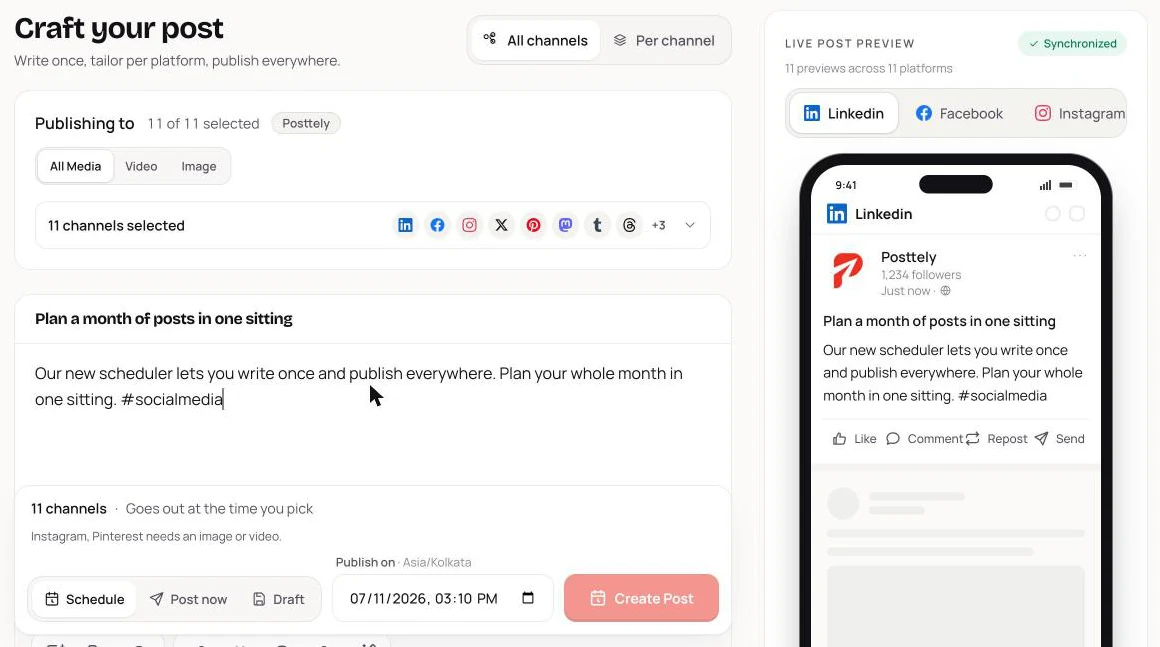
Type the caption in the large box. The title is optional and is only used by Pinterest, Reddit and LinkedIn. The preview on the right updates as you type, and you can click a channel tab above it to see that channel's version.
Step 4: Use the editor tools
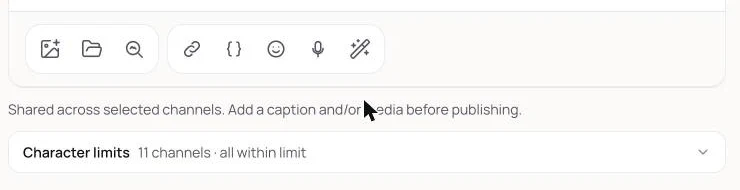
The toolbar under the caption helps you finish faster:
- Upload image or video, Media library and Stock photos add pictures and clips.
- Tracked link (UTM) builds a link you can follow in analytics, and { } inserts a shortcode.
- Emoji, Dictate and the AI tools help you write faster.
Below it, Character limits shows how long your text is against every selected channel.
Step 5: Add an image or video
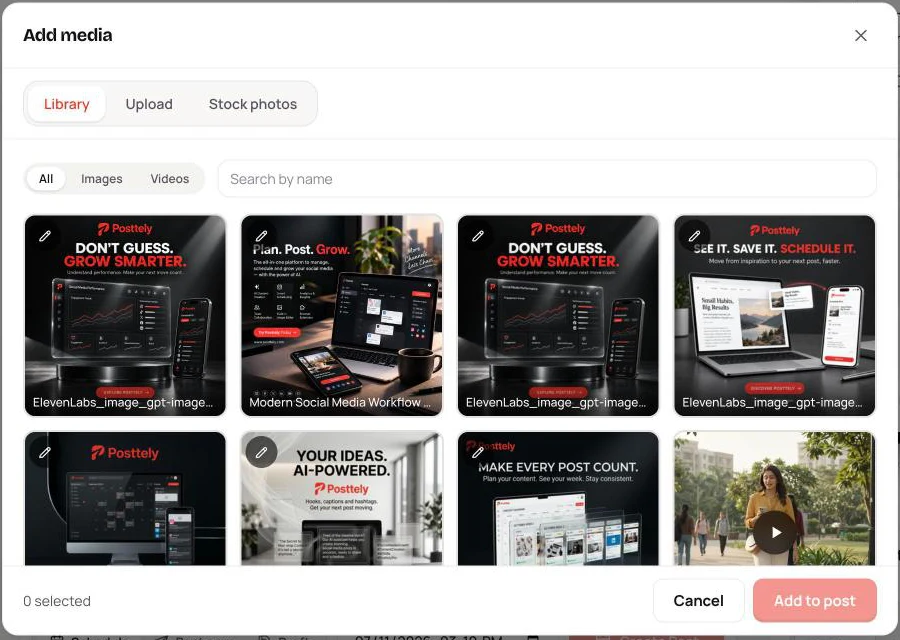
Open the media library from the toolbar, or go to Photos & videos. Pick a file from Library, upload a new one from Upload, or search Stock photos, then click Add to post. Posttely resizes the file for each platform.
Step 6: Check the preview and publish
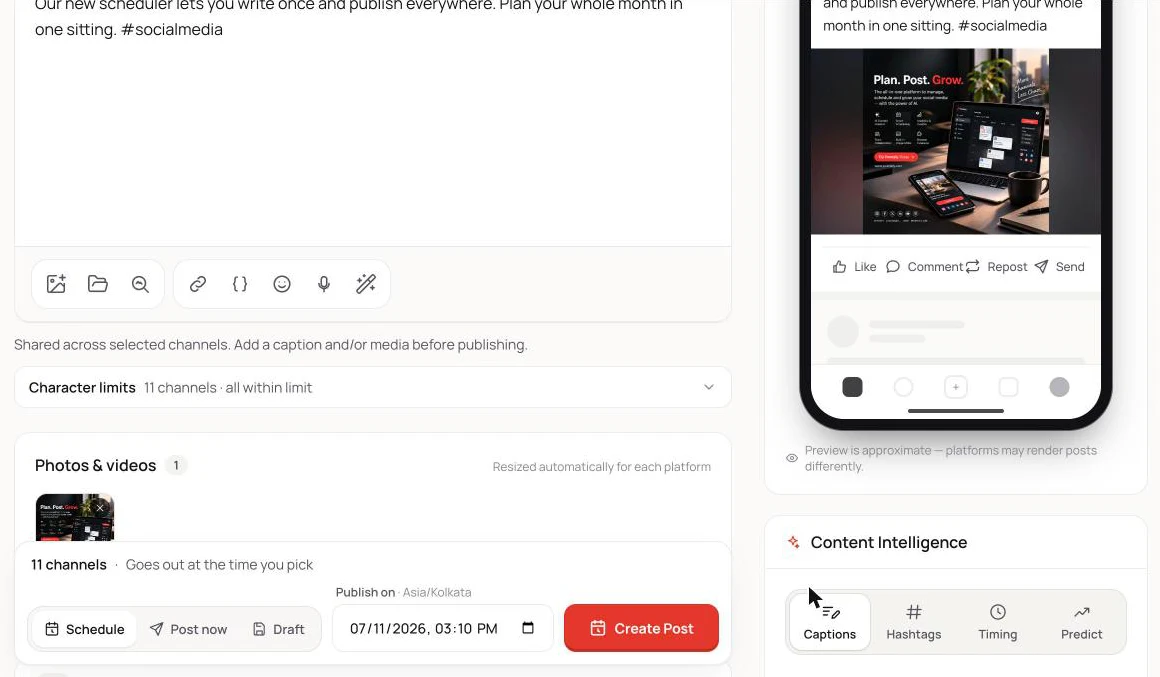
Look at the preview for each channel. Then choose how it goes out, in the bar at the bottom:
- Schedule: pick a date and time, then click Create Post. The time uses your workspace time zone.
- Post now: publishes straight away after you confirm.
- Draft: saves the post without publishing, so you can finish it later from Drafts.
After you submit, a progress list shows each channel. Open Scheduled to see upcoming posts, or Recent Posts and Failed Posts for results.
Part 2: Create a post per channel
Step 1: Switch to Per channel
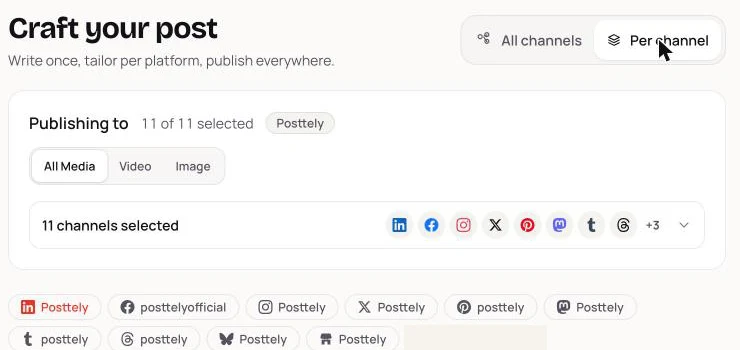
At the top right of the page, click Per channel. A row of channel buttons appears above the editor, one for each selected channel. The mode needs at least two selected channels.
Step 2: Write each version
- Click a channel button, for example Twitter. The editor now shows that channel's own copy, and the preview switches to it.
- Edit the caption, title, media, first comment or call to action for that channel only.
- Repeat for every channel that needs its own wording. Channels you leave alone keep the text you wrote first.
Every channel needs its own text or media. If one is empty, the bar at the bottom names it.
Step 3: Publish
Choose Schedule, Post now or Draft exactly as in Part 1. Each channel receives its own version.
Fix common errors
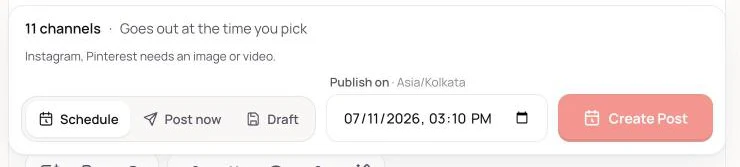
"Instagram, Pinterest needs an image or video"
Instagram and Pinterest do not accept text-only posts, so Create Post stays disabled. Add an image or video from Photos & videos, or untick those channels. If the server still rejects it, you will see "Instagram requires an image or video. Text-only posts are not supported."
"Twitter, Bluesky have a shorter limit"
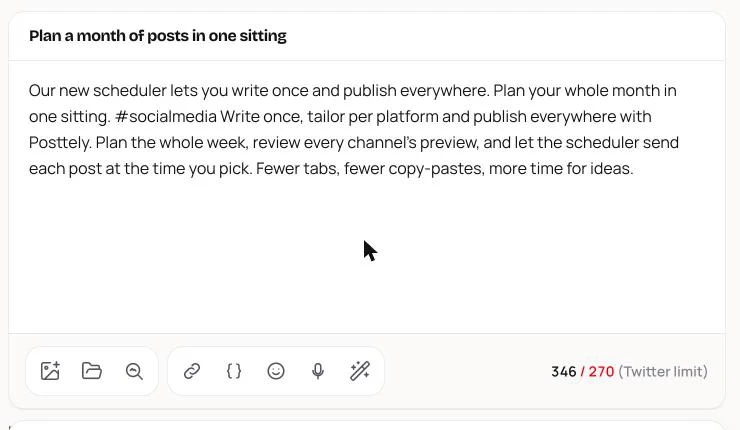
Your caption is longer than some channels allow. In Character limits, over-limit channels show in red, for example 346 / 270 for X. You have two choices:
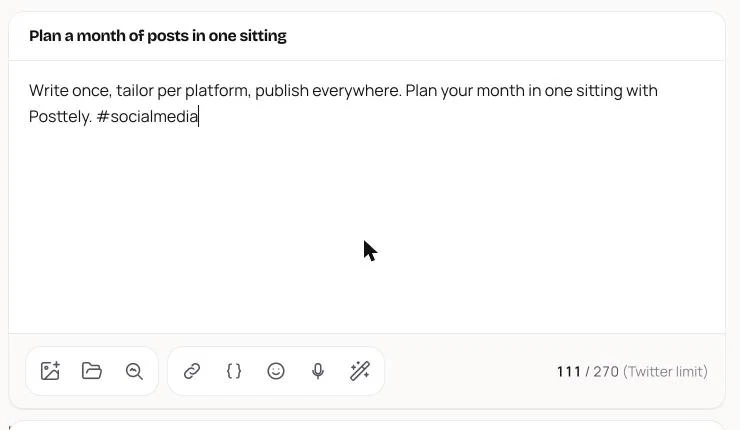
- Shorten it yourself. Switch to Per channel, open the channel and write a shorter version, until the counter turns back to normal.
- Let Posttely shorten it. Click Create Post. A window "Your text is too long" lists each channel and how its text will end. Click Continue to shorten only those channels, or Fix text to go back. Other channels keep your full text.
"Pick a time at least 5 minutes from now"
Scheduled posts need a time in the future, within the next year. Change the date and time, or use Post now.
"Sorry your post limit was reached" or "Post limit reached for ..."
Your plan has no posts left, or one channel has used its monthly allowance. Remove that channel from the post, wait for next month, or upgrade your plan from Plan.
"One or more selected channels are not available"
A channel was disconnected or paused after you opened the page. Reload, then reconnect it in Connected Accounts or untick it.
"Can't reach the server. Please try again."
The connection dropped. Check your internet and try again. Your text stays in the editor, so you do not lose it.
"The call to action URL must start with http:// or https://"
This only applies to Google Business Profile. Enter the full link, including http:// or https://.
Tips
- Use All channels for announcements that read the same everywhere.
- Use Per channel when one network needs a shorter caption, different hashtags or its own first comment.
- Save as Draft first if you want a teammate to review the wording.